It lets your customers swipe horizontally through up to 10 interactive cards within a single message. It is the ideal tool to showcase a product catalog, present different service options, or tell a brand story in an immersive way.
On Kanal, you can use carousels in both your Campaigns and your Automations thanks to our single visual builder interface.
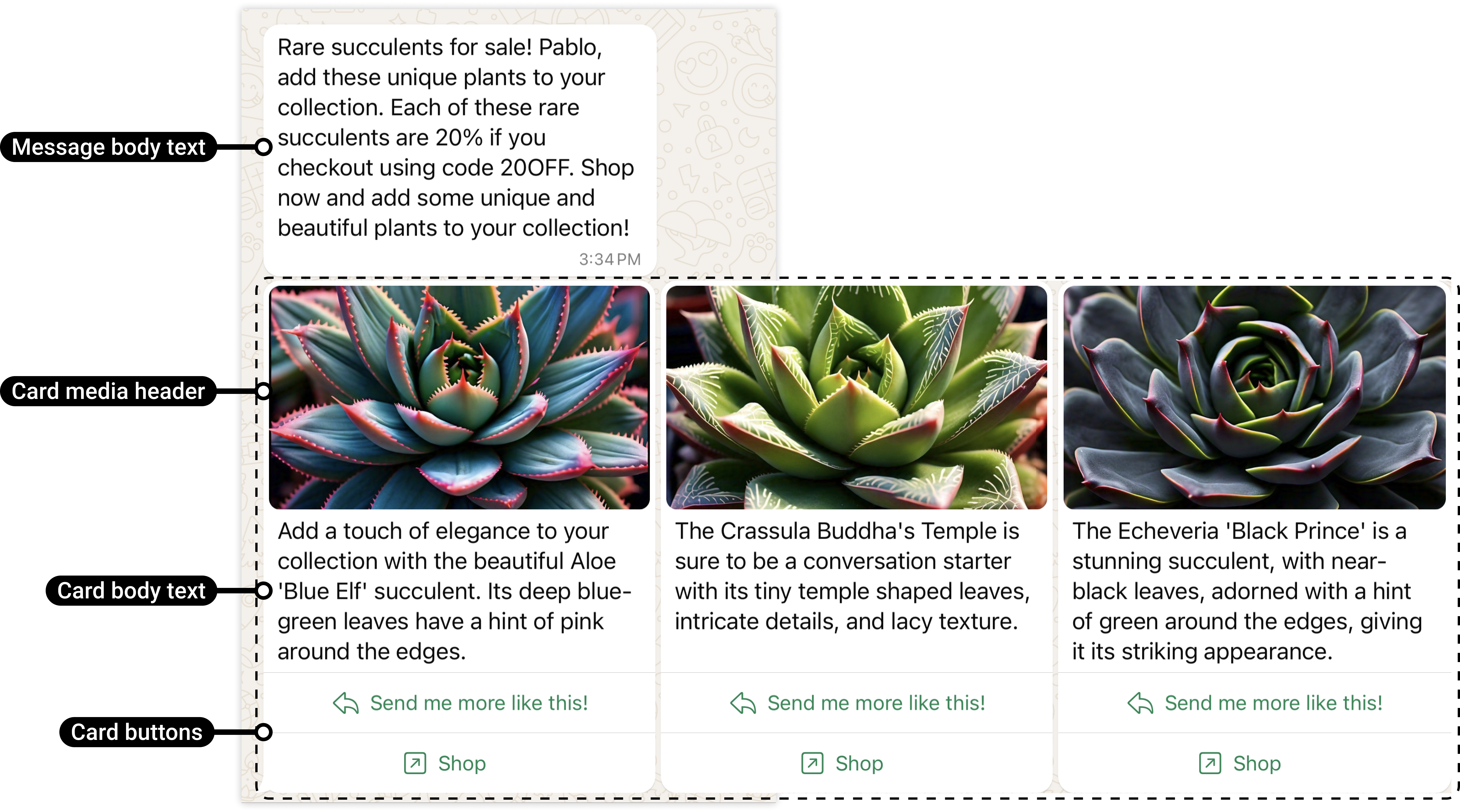
A carousel is made up of several aligned cards (Media Cards). Each card is independent and can contain:
A media header: An image or a video.
Body text: A description specific to the card.
Action buttons: Up to 2 buttons per card (external link or quick reply).
To make sure your carousel gets approved by Meta and displays correctly on every phone, you must follow these rules:
Number of cards: Minimum 2 cards, maximum 10 cards.
Media consistency: All cards in the same carousel must use the same media type (either all images, or all videos).
Buttons: You can add up to 2 buttons per card.
Required dimensions: To prevent Meta from automatically cropping your content, you must use the 1200x628 pixels format for your images and videos.
Images: JPG or PNG format. Max size of 2 MB per card.
Videos: MP4 format (H.264/AAC). Max size of 16 MB per card.
Automatic cropping: If your files do not match the 1200x628 px dimensions, Meta will resize the card arbitrarily, which risks cutting off your text or key visuals.
Since April 2026, carousel creation is built directly into your workflows. You no longer need to go through the "WhatsApp Templates" section.
Whether you are in an Automation or a Campaign, the interface is now identical:
In your canvas (Flow Builder), click the Add an Action button.
Select the WhatsApp Carousel option.
A new node appears on your interface.
Click the Carousel node to open the configuration panel on the right and follow these steps:
Add cards: Click the add button to create your different cards (up to 10).
Editing: For each card, upload your visual (1200x628 px), write your text, and set up your link or reply buttons.
The approval process: The approval mode depends on the sending context:
Case 1: Carousel as a "Template" (for campaigns or follow-ups outside the 24h window): Once configuration is complete, you must click the Submit button to submit the carousel to Meta. Sending can only start after their approval.
Case 2: Carousel as a "Regular Message" (immediate reply within the 24h window): If your carousel is sent in response to an incoming customer message, it counts as a session message. In that case, approval is automatic and instant; you do not need to submit it to Meta.
The first card determines whether the customer will swipe through the rest. Lead with your most striking visual or your strongest offer to maximize engagement.
Make sure all your images or videos share the same graphic style and framing. A harmonious carousel reinforces your brand's professional image.
If you are showcasing different products, each "View product" button should lead to the specific URL of that item in your Shopify store. Use personalization to make each card unique.
Does a carousel cost more than a simple message?
No. Meta bills for opening a marketing session. Whether your message contains a single image or a 10-card carousel, the cost of the conversation stays the same.
Can I mix images and videos?
No, Meta requires a single media type per carousel to ensure a smooth swiping experience.
Can the carousel be used as an automatic reply?
Yes. Since the carousel is now a standard action node, you can place it after any trigger (Keyword, Abandoned Cart, etc.) or after a choice in an interactive menu.