A Kanal campaign is a flow that you build visually, just like an automation: a first message (a WhatsApp template), then, if you want, follow-ups, delays or replies to buttons. It is the only way to create a campaign in Kanal.
Open the Campaigns section in the sidebar and click the create button.
Choose Start from scratch to build your flow yourself, or Start from a template to use a model from the library.
Enter an internal name (for example "Summer collection launch"). It helps you find the campaign and its statistics.
The library offers ready-to-use campaign models. The model you pick creates the flow with its messages: then adapt each message to your brand (text, visual, links, offer). Like any WhatsApp template, the model's templates must be approved by Meta before they can go out.
From the automations list, an automation's menu also lets you turn it into a campaign. The campaign gets its own copies of the templates, as drafts: submit them to Meta, because the campaign cannot be scheduled before that. The automation's trigger is not carried over, so the first message must be a template, and variables tied to the trigger (order, cart...) are no longer replaced.
You land in the builder, identical to the automations builder.
The Begin Campaign starting node: it is the entry point for every contact in your audience. It groups the variables available to personalize your messages. The contact's first name, last name and phone number are available natively, whatever the audience source.
The first message: click Add an Action, then choose Send Template (or Send Carousel Template for a carousel, Scale plan). A campaign's first message is always a WhatsApp template. Create it directly in the node, then submit it to Meta. No need to wait for approval to continue: the Send on approval option launches the campaign as soon as the template is approved.
The rest of the flow: just like in an automation, add delays (Wait time), follow-ups or a reply for each template button. Button replies are handled directly in the campaign, without creating a separate automation.
Some actions require the Scale plan or higher: Conditions, AB Testing, carousels, Ask text, Ask List Option, contact variables, Redirect to node, API Call, Shopify tags and promo codes. Every message in the flow is billed: a follow-up raises the campaign's maximum cost.
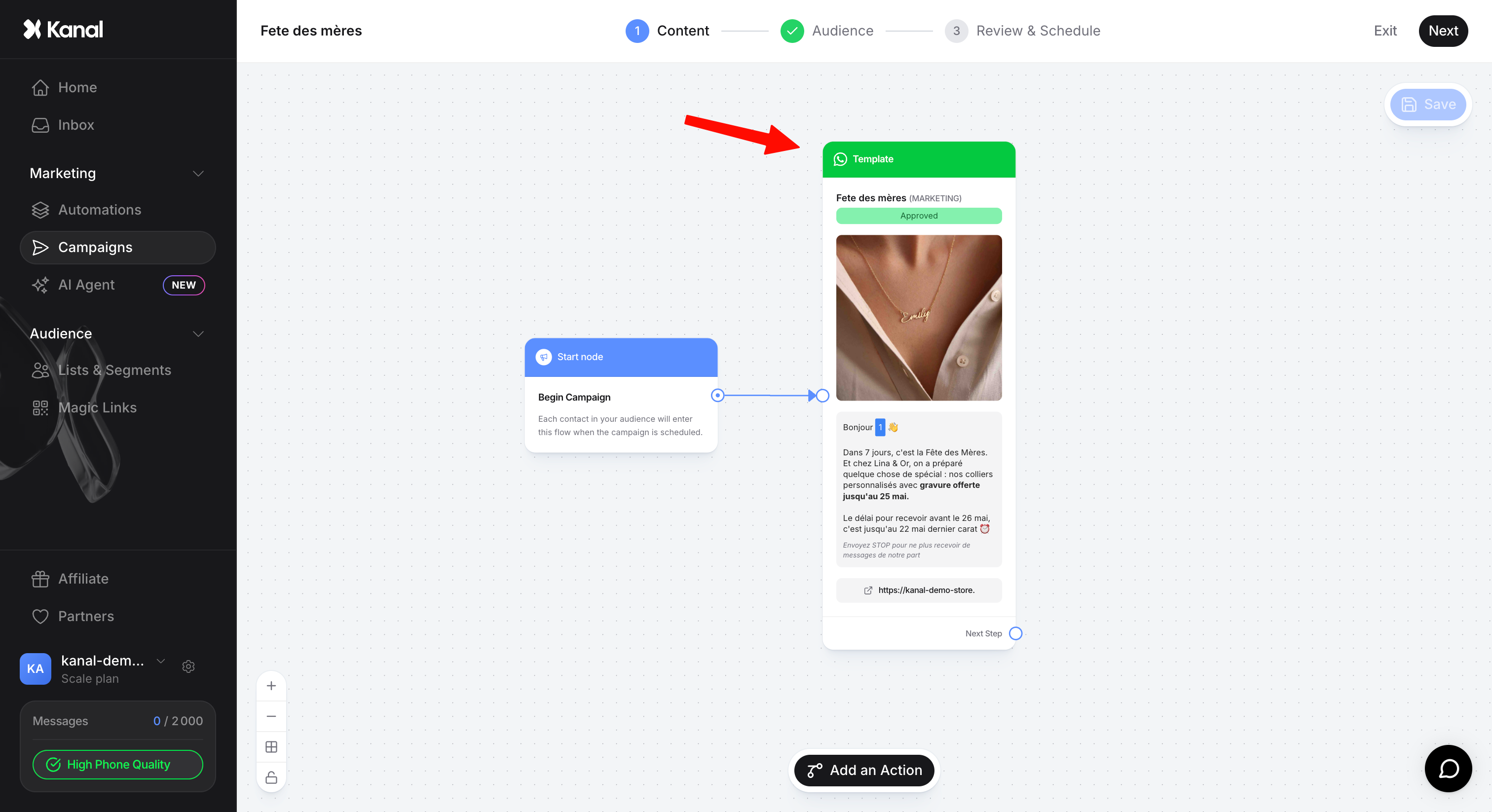
Once the flow is ready, click Next.
Five sources are available: a list, a segment (Scale plan), a CSV or Excel file import, your Shopify customers, or a Klaviyo segment with From Klaviyo (Scale plan).
Only the number of contacts in the audience is shown, not the detailed list.
Kanal automatically excludes unsubscribed (opt-out) contacts. Contacts with the Unknown status are not excluded: only send marketing campaigns to contacts who agreed to receive your messages on WhatsApp.
With a segment, tick Recalculate before sending (unticked by default) so the segment is up to date at send time.
Importing a file into a campaign automatically switches contacts with the Unknown status to opt-in: only import contacts who gave their consent.
Each source is explained in Choose the audience of a WhatsApp campaign.
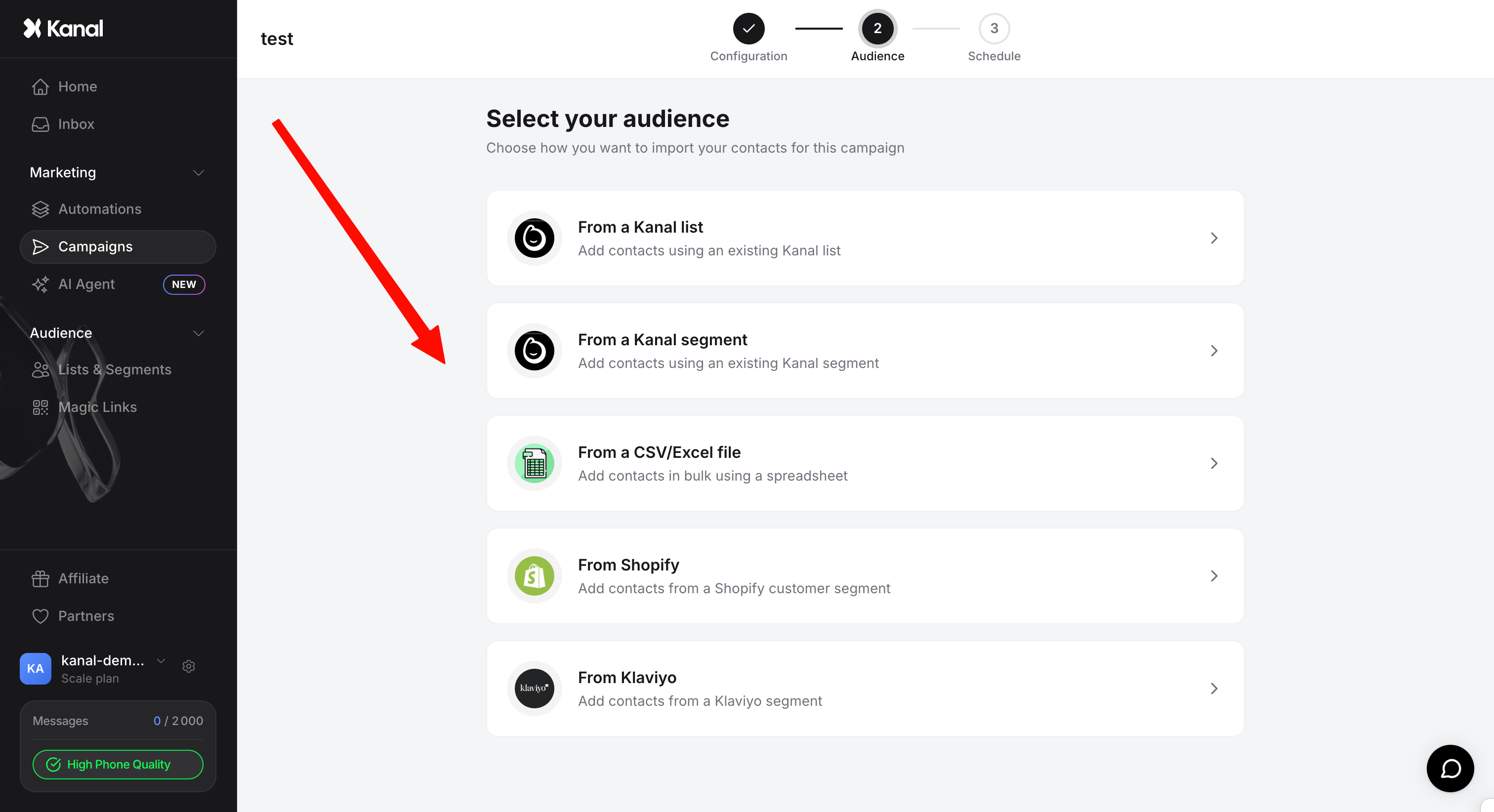
Then click Next.
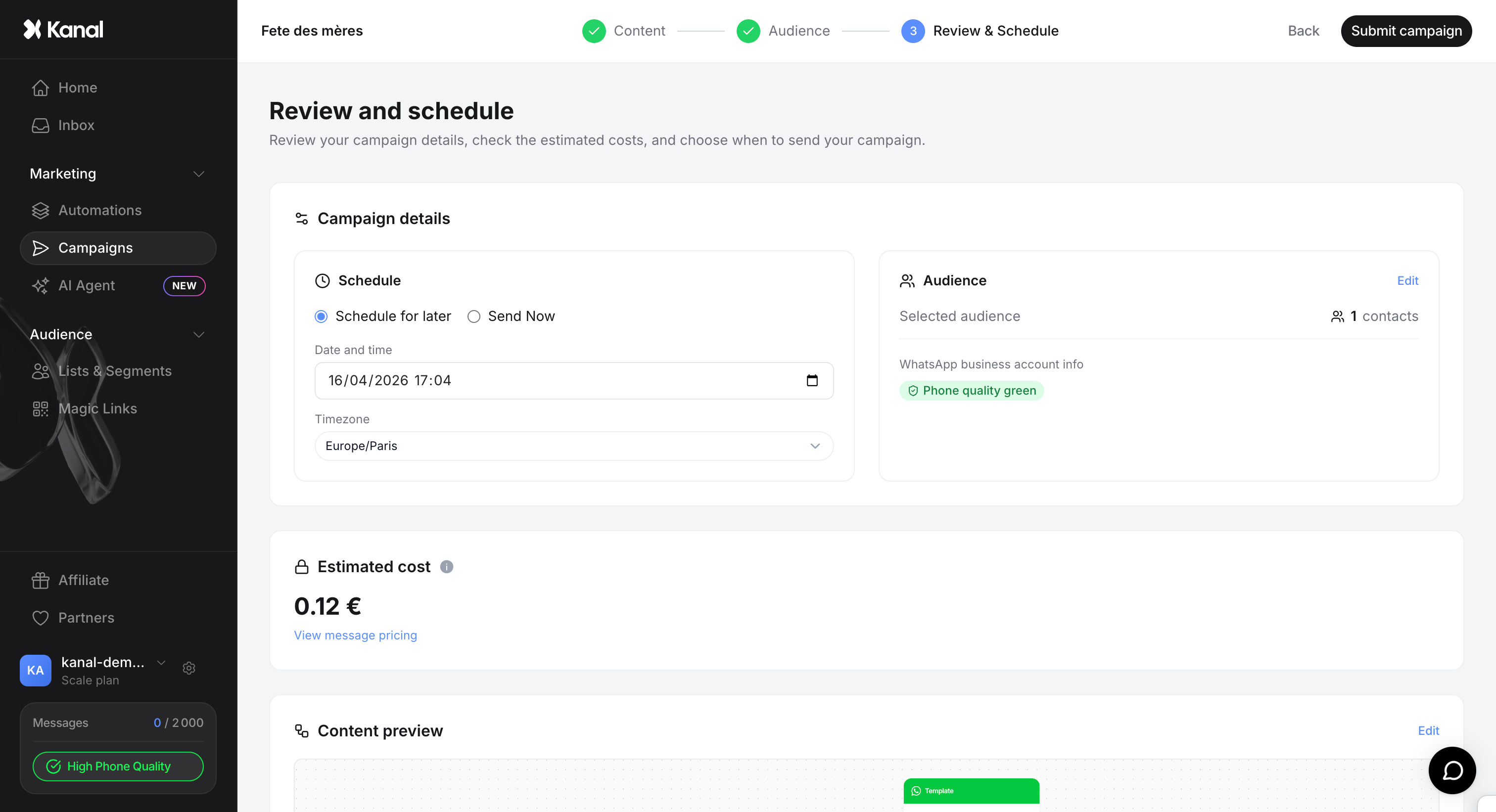
Before sending, three checks:
Test before sending: send yourself the campaign as a test to check the rendering, variables and links.
The estimated cost: Kanal shows a minimum and a maximum cost, broken down by country.
The payment method: a payment method must be registered for WhatsApp message billing.
Details in Test a campaign and estimate its cost before sending.
Then choose when to send: Send now, Send on approval (the campaign is cancelled if the template is not approved within 72 hours) or Schedule for later. A campaign uses a single time zone for all its contacts.
Finally, click Submit Campaign.
Track results: statistics are visible as soon as sending is in progress, including for each node of the flow. See Analyze the performance of your WhatsApp campaigns.
Edit the campaign: the flow can still be edited after sending. Messages already sent do not change.
Version history: find the previous versions of the flow.
Pause, resume or reschedule: see Schedule, pause, resume or reschedule a campaign.