Verifying your Meta Business Manager is a security process that confirms your company's legal identity. While it is not always required to get started, it becomes essential as soon as you want to increase your sending volume and build trust in your WhatsApp presence.
Verification gives you three major advantages for your growth:
Credibility and Brand Name: A verified business can display its brand name directly in its customers' chat list, even if they have not saved the number.
"Official Business Account" certification: This is the first step toward getting the green certification badge next to your name.
Higher sending tiers: Meta initially limits unverified accounts. Verification lets you move up the conversation tiers (2,000, 10,000, then 100,000 conversations per 24h).
Before starting the process, prepare the following documents (in PDF or JPG format):
Proof of legal existence: A business registration document less than 3 months old (KBIS extract in France) or your company's articles of incorporation.
Proof of address: An electricity bill, phone bill, or bank statement in the company's name, matching the exact address entered on Meta.
Website access: You must be able to receive an email on your site's domain (e.g. [email protected]) or have access to your domain's DNS settings.
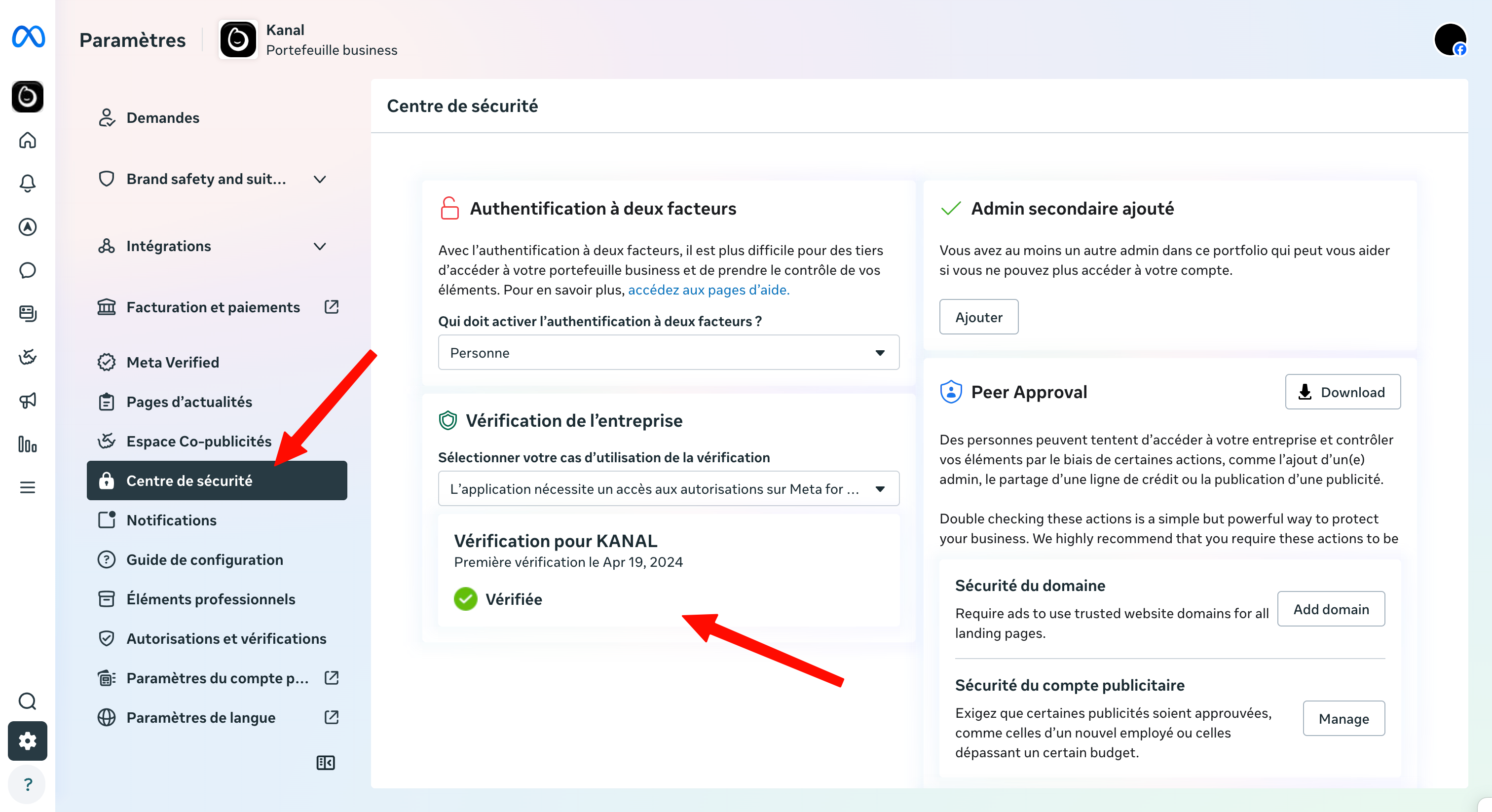
Log in to your Meta Business settings.
In the left menu, scroll down to Security Center.
Find the "Business verification" section and click Start verification.
Note: If the button is grayed out, it usually means you have not created a WhatsApp Business account yet, or Meta does not consider verification necessary for you yet. You can force it to activate by creating a first message template in Kanal.
Enter the information exactly as it appears on your official documents (business registration):
Company name.
Full mailing address.
Business phone number.
Official website.
If Meta does not find an automatic match in its database, it will ask you for documents:
Confirm the legal name: Upload your business registration document or articles of incorporation.
Confirm the address or phone number: Upload a bill (utility, phone) where the company name and address are strictly identical to what you entered in step 2.
You need to prove that you actually represent this business. Choose one of the following methods:
Email (Recommended): You will receive a 6-digit OTP code. The email address must use the same domain as your website (e.g. [email protected] for the site my-brand.com).
Phone or WhatsApp: You will receive the code by call or SMS on the company's official number.
Domain verification: If you have technical skills, you can add a TXT record in your DNS settings to prove ownership of the website.
Once your request is submitted, Meta reviews your file.
Timeline: The answer can come within 10 minutes (if everything checks out) or take up to 14 business days depending on the complexity of your file.
Result: You will receive an email notification and an alert in your Business Manager.
Once you get the "Verified" status, no further action is needed. Your messaging limits will increase automatically based on your sending volume and your quality score.
90% of Meta rejections come from a minor difference between the document and what was typed (e.g. "Avenue" written "Av." on the registration document but "Avenue" in Meta). Be strictly identical, down to the character, when entering your details to guarantee a fast approval.