To use the WhatsApp Business API, Meta (the parent company of Facebook and WhatsApp) requires your business to be identified and verified. This process happens through the Meta Business Manager. It is a mandatory security step to protect your number and guarantee your brand's authenticity.
Before starting the connection with Kanal, make sure you meet these two conditions:
Have a Meta Business Manager account (also called a business portfolio). If you do not have one, you can create one directly during the Meta onboarding in Kanal.
Have the "Admin" role (Full control) on that account.
The first step of the Kanal onboarding, "Good to know before you start", also lists these conditions. If they are not met, Meta may reject or restrict your account:
A valid website linked to your Business Manager, for a business allowed on WhatsApp.
No products prohibited by Meta: CBD, alcohol, weapons, gambling, nudity.
Do not use the name or the number suggested by Meta during the connection: enter your brand name and your own number.
Also plan a dedicated number, linked to no other WhatsApp account (neither the WhatsApp app nor the WhatsApp Business app). If your number is already in use, see Can I use a number already active on WhatsApp?
Think of it as your business's control tower for the whole Meta ecosystem (Facebook, Instagram, and WhatsApp). It is a free tool that centralizes the management of your pages, your ads, and your business communications.
To grant you access to the WhatsApp API, Meta needs to make sure you are legally allowed to act on behalf of your business. The Business Manager is used to:
Officially verify that your company exists.
Link your phone number to your business assets.
Secure access and permissions.
The Business Manager is the main entity. Your WhatsApp Business account is only a subcategory of it: a section inside the Business Manager, just like your pages, ad accounts, or catalogs.
This section is independent from the rest:
The quality of your WhatsApp account, or a restriction on it, does not affect the quality of your Business Manager.
Even if your WhatsApp account were banned, your ads, ad accounts, and Facebook and Instagram pages are not impacted.

Using WhatsApp with Kanal puts your advertising on Meta at no risk. One thing to know: the WhatsApp messaging limit is calculated at the business portfolio level. All WhatsApp numbers in the same Business Manager therefore share the same limit. Learn more about messaging limits.
It comes down to security and technical rights. Only a user with admin access has the rights needed to perform structural actions.
As an Admin, you can:
Authorize Kanal to connect to your WhatsApp API.
Manage your team members and set their roles.
Edit critical settings (billing, security, identity).
Without this role, Meta's system will automatically block the setup when you try to link your number to Kanal.
If you are unsure about your access level, here is how to check:
Go to the Meta Business settings.
In the left menu, click Users, then People.
Look for your name in the list. Your role is shown right next to it. You must see "Admin access" or "Full control" listed there.
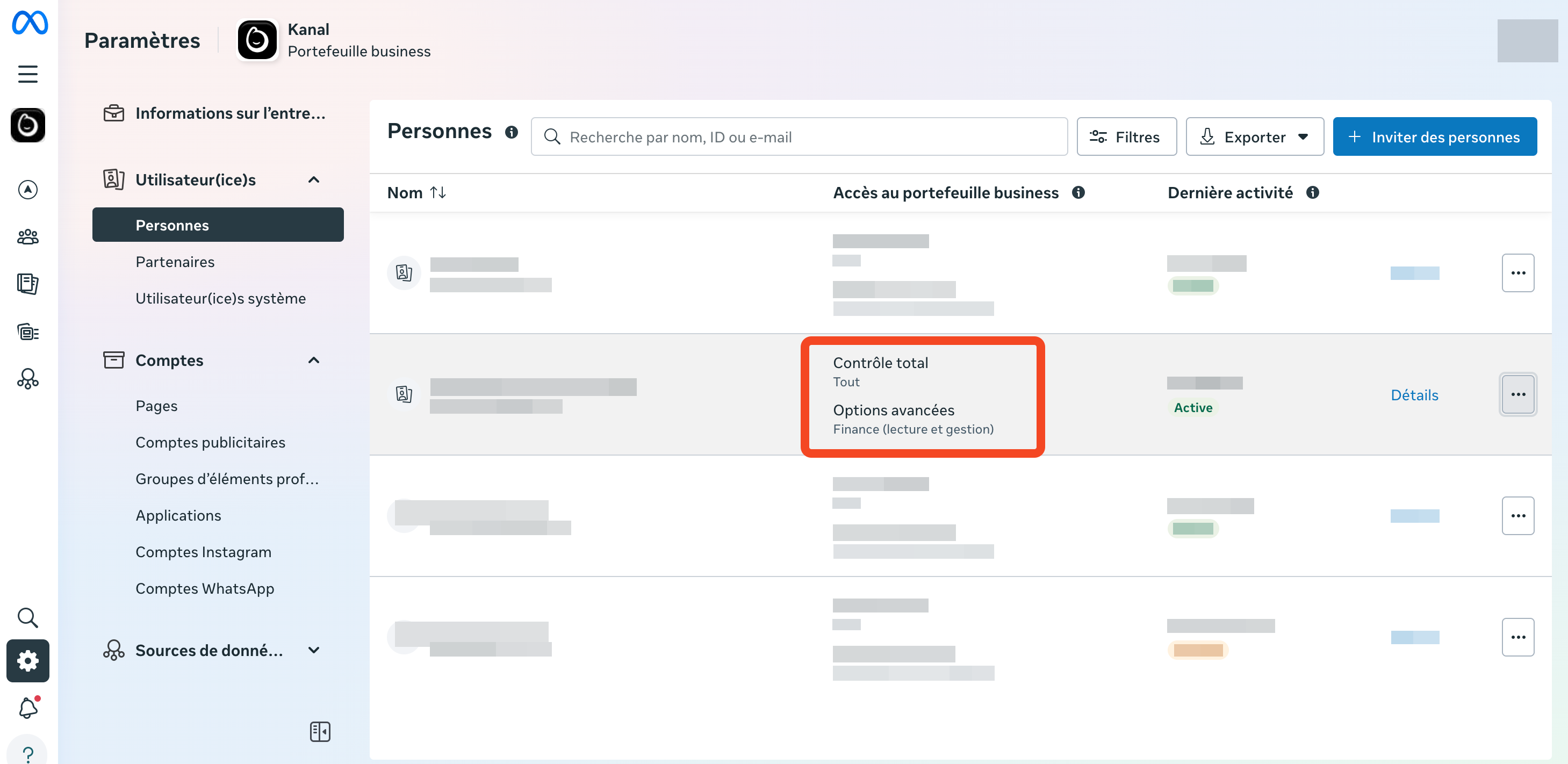
Perfect! You have the green light. You can continue the setup in Kanal by following our guide Connect my number: the 6 onboarding steps.
Don't worry, this is very easy to fix:
Find the person in the list who already has Admin access (often the marketing manager or the business owner).
Ask them to grant you admin access. It takes less than 30 seconds and will instantly unblock your situation.
If your business does not have an account yet, you will need to create one. It is a quick, no-cost process that you can start directly during your Kanal signup through the official Meta window.
Expert tip: We recommend always having at least two admins on your Business Manager. This keeps you from being locked out if a team member leaves the company or loses their Facebook access.