
Rather than leaving a customer without an answer when they write to you, you can set up a redirect automation. It politely tells the customer that this channel is automated and shows them how to reach your support team.
Why set up this redirect?
Manage expectations: The customer gets an instant reply explaining this is not a live chat.
Centralize support: You route all technical or after-sales requests to your official email address, so nothing gets scattered.
Professionalism: A well-written automatic reply strengthens your brand's credibility.
Step 1: Set up the "Any text" trigger
The first step is to create an automation that reacts to absolutely every incoming message, whatever its content.
Go to Automations > Create Automation.
Choose the trigger: Inbound Message.
In the trigger options, select Any text.
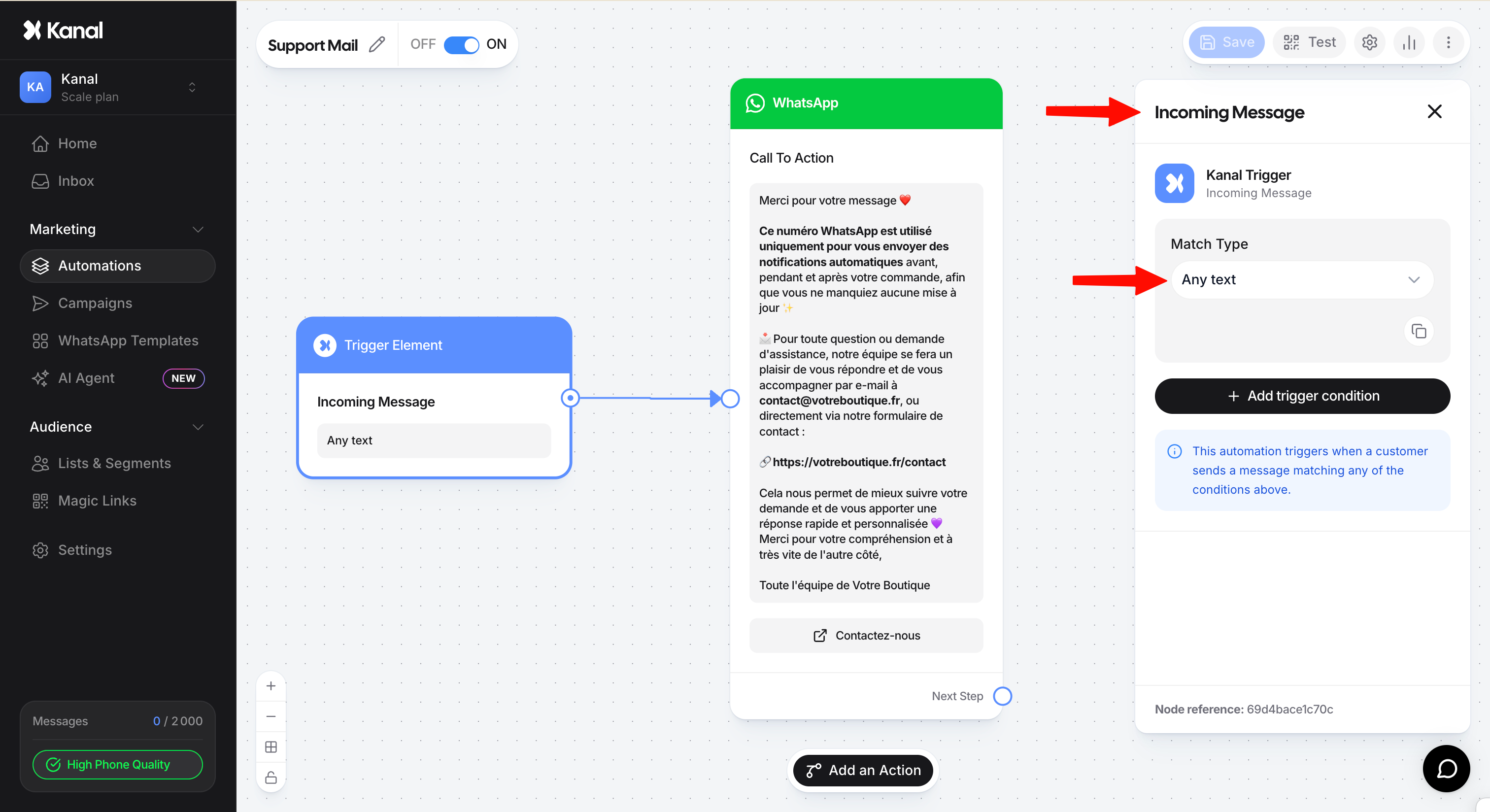
From now on, whenever a customer sends a message ("Hello", "Where is my order?", or even an emoji), the flow will fire.
Step 2: Write the redirect message
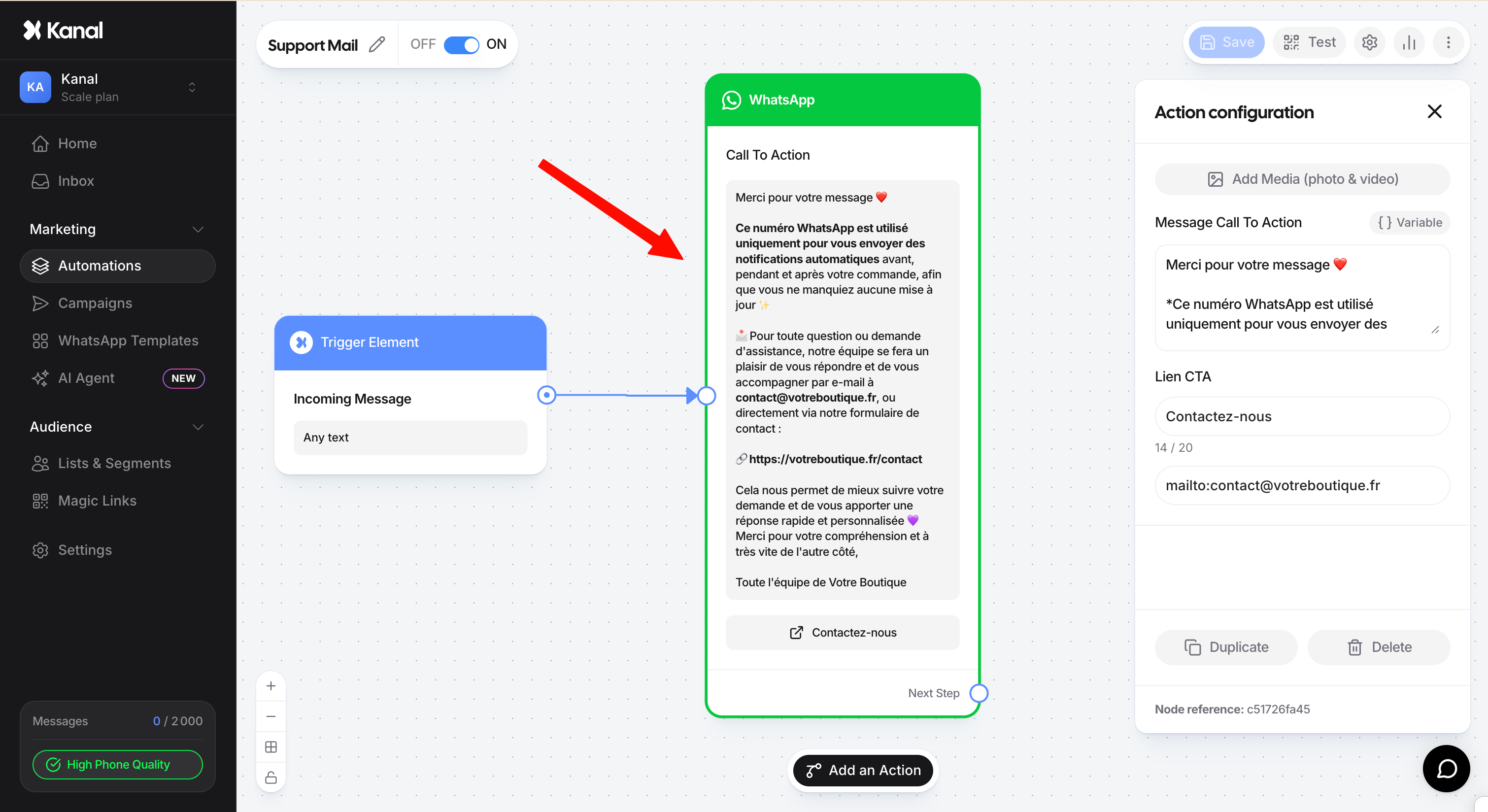
Then add a WhatsApp Message (With Button Link) node. Your message should be clear, friendly, and informative.
Recommended structure:
"Thanks for your message ❤
This WhatsApp number is only used to send you automatic notifications before, during, and after your order, so you never miss an update ✨
📩 For any question or support request, our team will be happy to help you by email at: [email protected]."
Step 3: Add an action button (Mail-to)
To make the customer journey as simple as possible, we recommend adding a button at the bottom of your message.
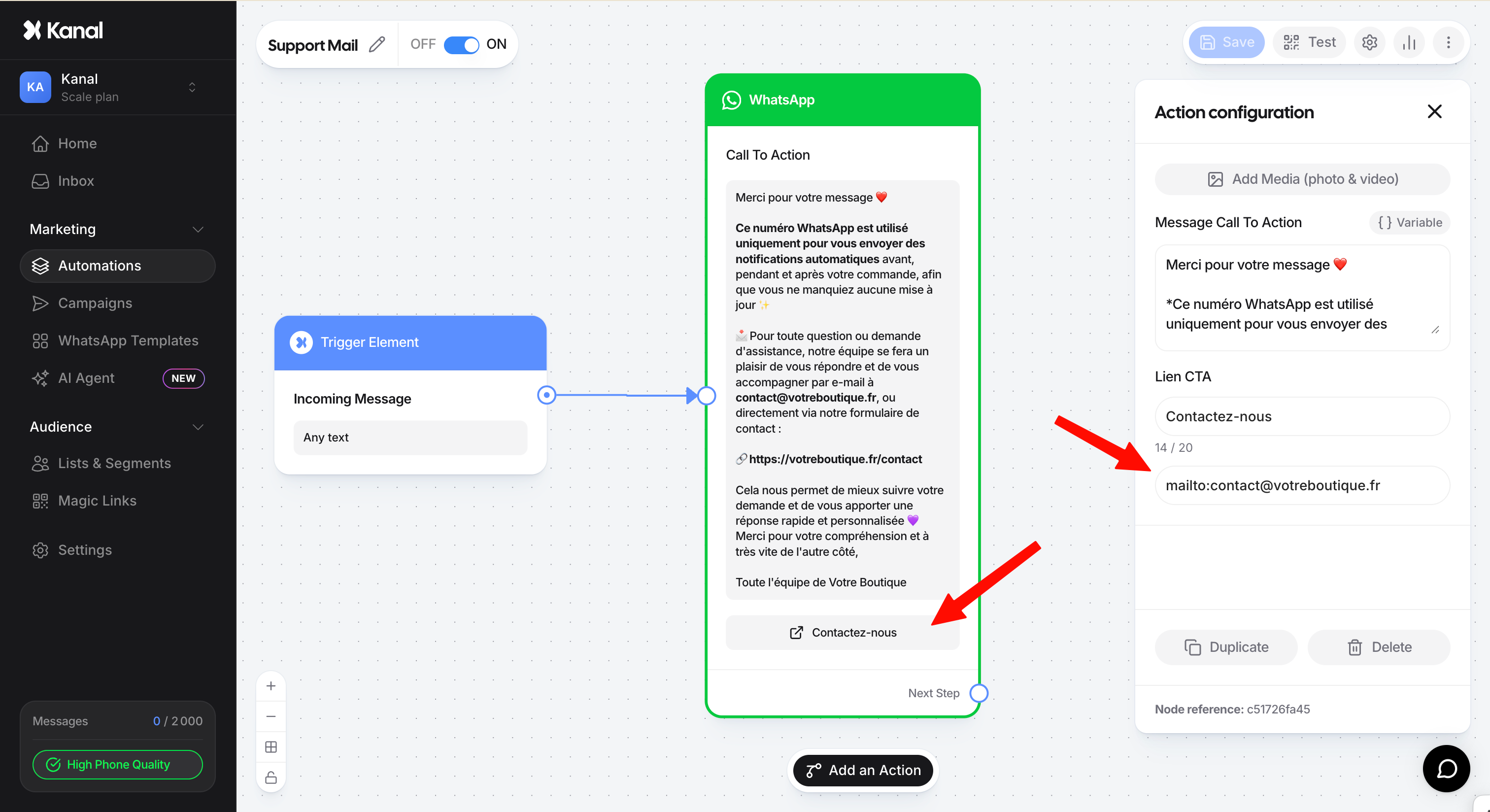
In the message node options, enable a Button.
Choose the button type: External link.
In the link URL, you can use a "mail-to" format to open the customer's email app directly:
mailto:[email protected]Button text: "Email us" or "Contact us".
How does it work for the customer?
As soon as the user taps the button, their default email app opens with your address already filled in. It is the fastest way to move the conversation from WhatsApp to your usual support system with zero friction.
Expert tip: Handling the "double message"
If you have other keyword automations (e.g. "PROMO"), Kanal processes them first. The Any text automation only fires when no other keyword matched, acting as a "safety net" for your customer relationships.