Personalizing the post-purchase experience grows your customers' lifetime value (LTV). By filtering on a specific product, you build relevant recommendations.
The product filter works on the Post Purchase and Shipment Update triggers, and also on Abandoned Cart (it then checks the products in the cart).

Set up the product filter
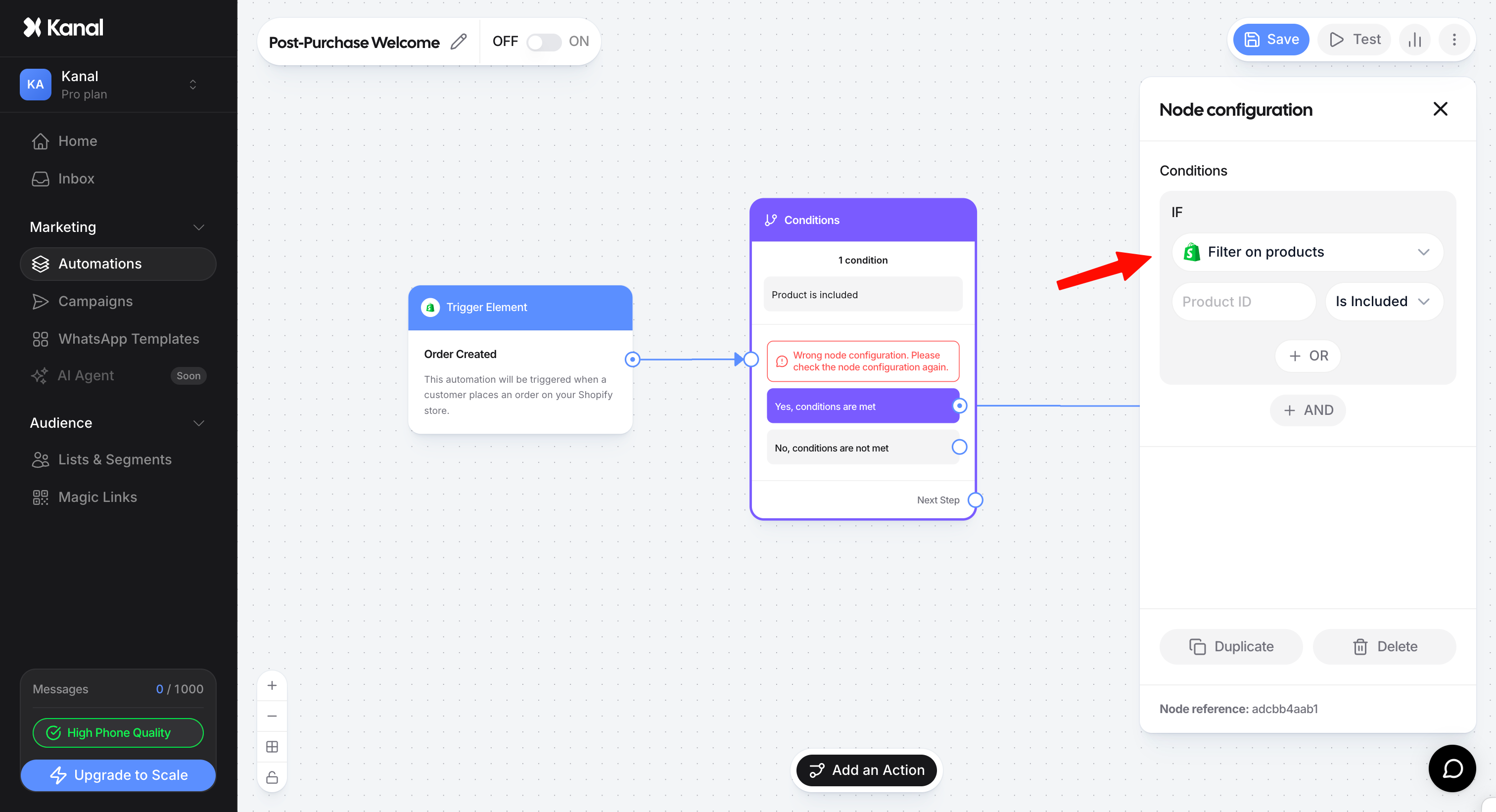
Right after the trigger (for example Post Purchase), click Add an Action and select Conditions.
Choose the Filter on product condition.
Select the product in the product picker: search it by title or SKU. You no longer need to copy the product ID from the Shopify URL. If you have several stores, choose the store first.
Choose the operator: Is included (the product is in the order) or Is excluded (the product is not in it).
Target a specific variant
To target a specific size, color or format, use the Filter on variants condition.
Use case: a targeted cross-sell
You want to offer a cap to every customer who places an order, except those who already have it in their order.
Flow setup
Trigger: Post Purchase (order created).
Conditions node: Filter on product, product = your cap, operator Is excluded.
Branching logic
Yes, conditions are met: the cap is not in the order. Add a Wait time (for example 2 hours), then a Send Template with your cap offer. The Post Purchase trigger does not open a conversation window: the message must be a template.
No, conditions are not met: the cap is already in the order. Leave this output unconnected so you do not send a useless offer.
Why use exclusion (Is excluded)?
Exclusion prevents you from sending a promotion on an item the customer just bought at full price. Your cross-sell offers stay consistent and less intrusive, which improves their conversion rate.