Make sure you have:
An active Kanal account properly connected to your WhatsApp Business API number.
A Facebook Page and a professional Instagram account.
A working Meta ad account.
Connected your WhatsApp number to your Facebook Page
Linking your number to your Page is required to run Click-to-WhatsApp ads and to add a direct contact button on your profile.
Prerequisites
You must be an Admin of the Facebook Page.
You must be an Admin of the Business Manager
The step-by-step guide
The easiest method is done directly from your Facebook Page.
1. Go to your Page settings
Go to your Facebook Page.
In the left-hand menu, click "Settings". If you are using the new Pages experience, you may need to click "Manage" first, then find the settings.
2. Go to "Linked accounts"
In the settings menu, look for and click "Linked accounts".


3. Select Page details, then "Add WhatsApp number"
You will see several options. Click "Add WhatsApp number".
4. Enter your phone number
Choose your country code (e.g. +33 for France).
Enter your WhatsApp Business API phone number without the leading 0.
Click "Send code" → Meta does not send the code since the number is already linked to the same Business Manager


6. Done!
Your WhatsApp number is now officially linked to your Facebook Page.
Step 1: Choose the right campaign objective
Go to your Meta Ads Manager.
Click the green "+ Create" button.
Choose the campaign objective "Engagement". It is the most optimized for generating conversations.

Click "Continue".
Step 2: Set up your ad set
This is where you define where the clicks go and who will see your ad.


Conversion location: Choose "Messaging apps".
Ad type: Leave "Click to message" selected.
Messaging apps:
Uncheck Messenger and Instagram.
Keep only WhatsApp checked.
Make sure the right number (the one connected to Kanal) is selected.
Budget and schedule: Set how much you want to spend and for how long.
Audience: Target the people you want to reach (by location, age, interests, etc.).
Placements: Keep "Advantage+ placements" (recommended) so Meta optimizes delivery, or manually choose where your ads will appear (e.g. Instagram Stories only).
Step 3: Create your ad (the visible part!)
Now it is time to create the visual and the copy your future customers will see.
Format: Choose your ad format (Single image, Video, Carousel).
Ad creative:
Upload your visual (image or video).
Write the Primary text: this is the hook that should make people want to click. Be clear and punchy.
Write a Headline that is short and catchy (e.g. "Special Offer -20%").
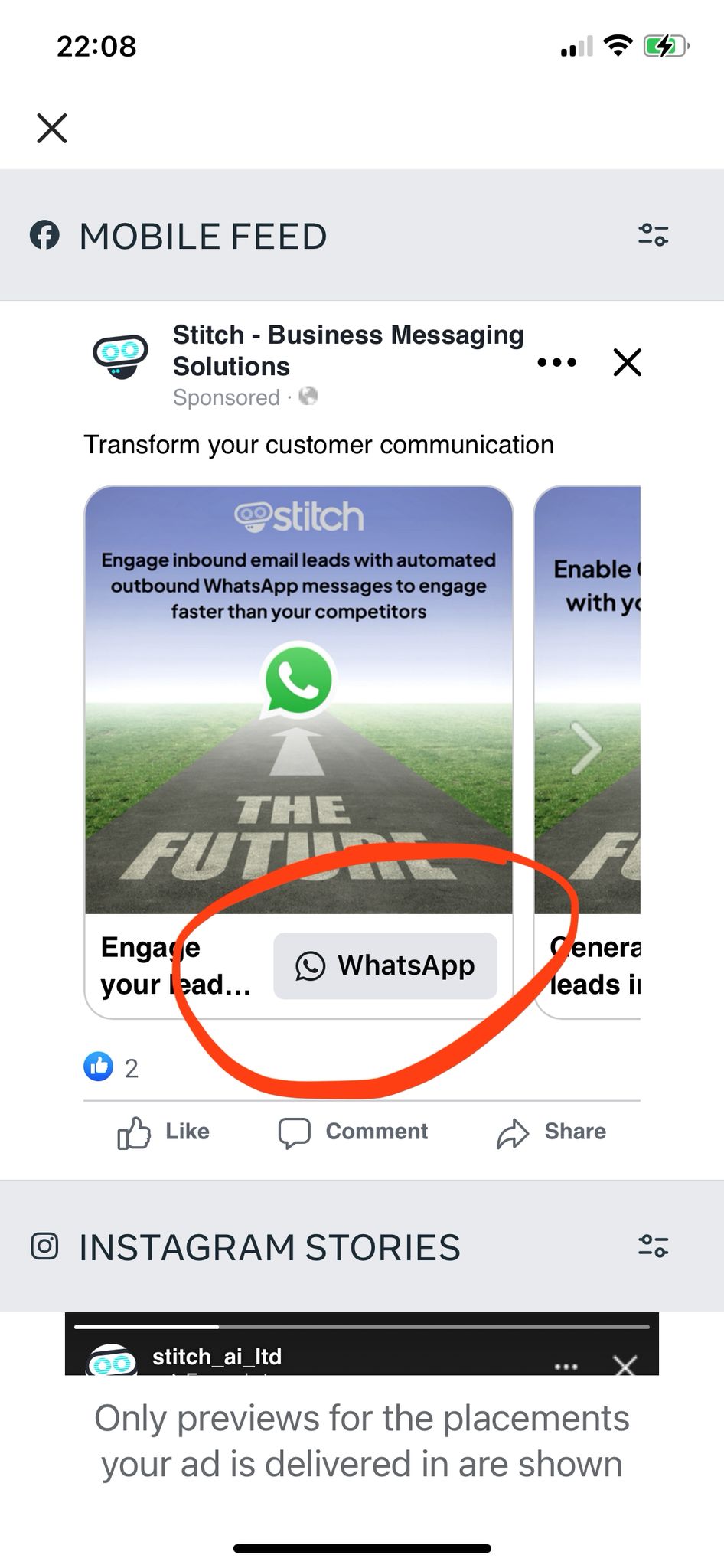
Call to action: The button will automatically be set to "Send WhatsApp message".
Step 4: Set up the welcome message (the key part)
This is the message that will appear in the user's WhatsApp after they click your ad.
In the "Message template" section, click "Create" or "Edit".
You can customize:
The welcome message: A greeting message that appears at the top of the conversation (e.g. "Hi! How can I help you?").
Suggested questions: Offer buttons with frequently asked questions to make the first contact easier (e.g. "What is the price?", "I want more info about product X").