Two-factor authentication adds a step to your login: on top of your usual sign-in method, Kanal asks for a 6-digit code generated by an app on your phone. Even if someone gets hold of your password, they cannot get into your account without that code.
You need an authenticator app on your phone, for example Google Authenticator, 1Password or Authy.
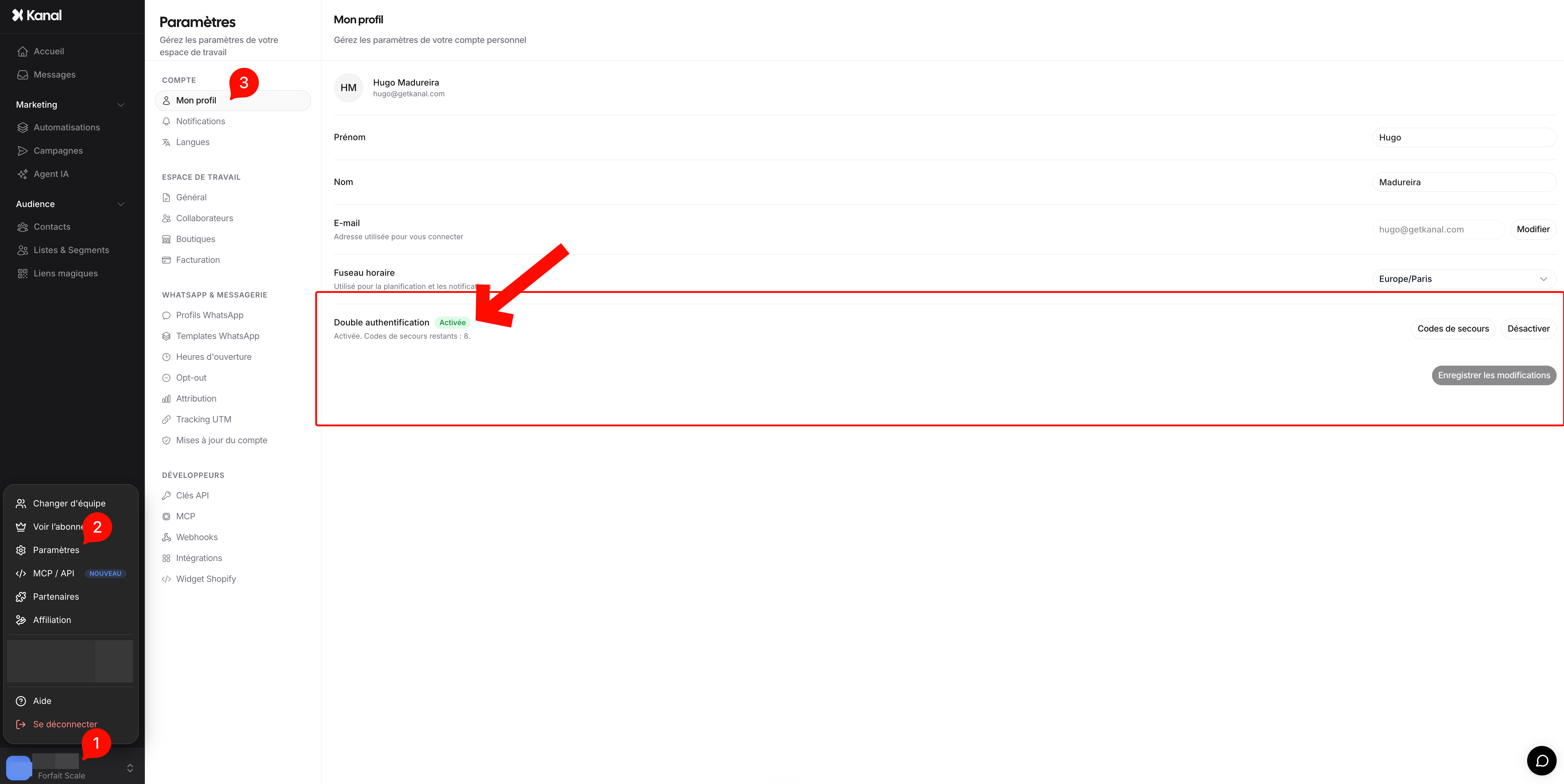
Click your team name, then Settings.
In the Account section, open My Profile.
On the Two-factor authentication line, click Enable.
Scan the QR code with your authenticator app. You can also type in the key shown under the QR code.
Enter the 6-digit code shown by the app, then click Enable.
Kanal shows your 8 recovery codes. Click Copy codes, store them somewhere safe, then click I have saved my codes.

Your recovery codes are shown only once. Each one lets you sign in once if you lose access to your app. Keep them somewhere other than your phone, for example in a password manager.

When you enable it, your sessions open on your other devices are closed. Sign in again on each of them with your code.
Sign in as usual, with your password, with Google or with Shopify. Kanal then asks for your verification code: open your authenticator app, enter the 6-digit code and click Verify.
Don't have your phone? Click Use a recovery code and enter one of your codes. Each recovery code works only once.
After several wrong codes, the current sign-in is cancelled and you need to start it again. If a code is refused although it looks right, check that your phone's time is set automatically.
In My Profile, the Two-factor authentication line shows how many recovery codes you have left. To get new ones, click Recovery codes, enter a code from your app, then click Generate. The old codes stop working.
In My Profile, click Disable on the Two-factor authentication line, then confirm with a code from your app or a recovery code.
Two-factor authentication is individual: each member enables it on their own account, and it cannot be enforced for the whole team.
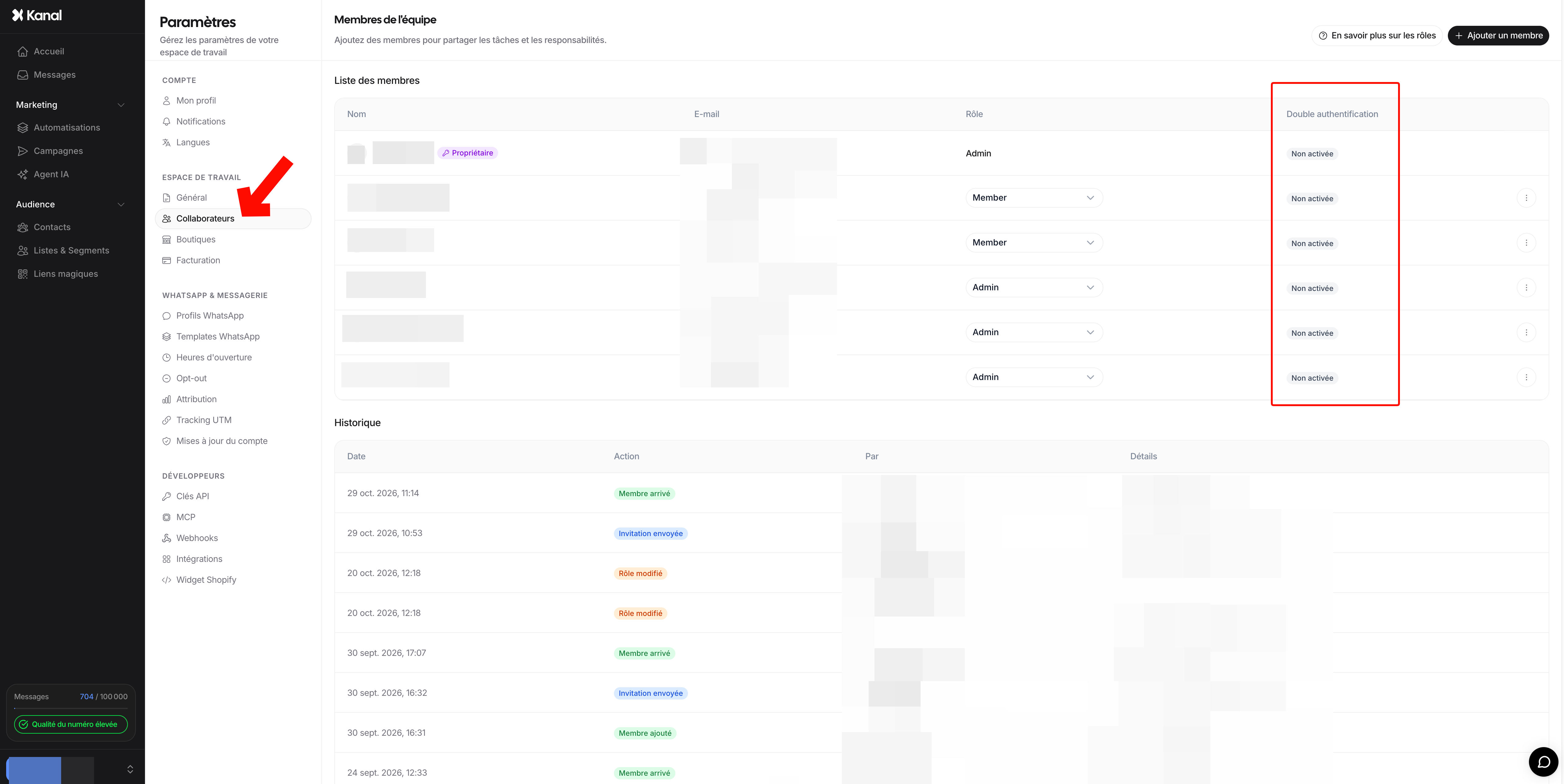
The account owner and the members allowed to manage the team can see who enabled it in Settings > Team members, in the Two-factor authentication column. Each time a member enables or disables it, this also appears in the history on that page.
Contact our support: our team can disable two-factor authentication on your account so you can sign in again, then you can enable it again with your new phone.