Your automations are running and the trigger count keeps going up, but you can't find the messages they sent in the Inbox? That is expected: they are there, but hidden by the default filter.
Why these messages do not appear
By default, the Inbox only shows conversations in which the customer replied. This setting helps you focus on the exchanges that are waiting for an answer from you.
Most automation messages (abandoned cart reminders, order confirmations, shipping updates) do not get a reply. The message is sent, but the conversation stays hidden until the customer writes back.
Show all conversations
In the sidebar, open the Inbox.
Open the filters, next to the search bar.
Find the Contact answered filter.
Change its value to show all contacts, not only those who replied.
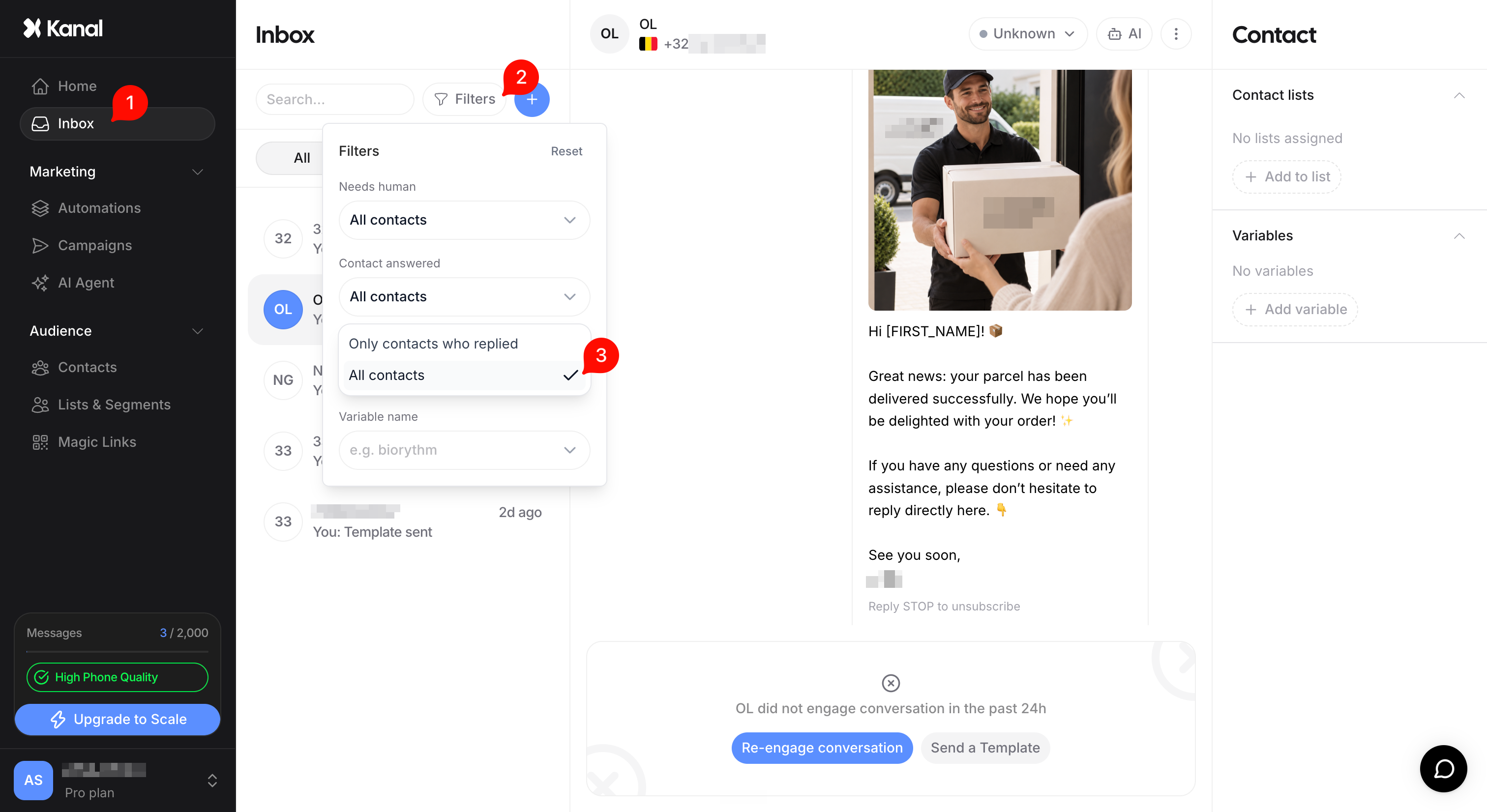
All conversations then appear, including those where only the automated message was sent.
What you see in the conversation
When you open a conversation, you see the full history: the trigger event (for example an abandoned cart, with its amount and number), then the message sent with its date, time and buttons.
The ticks under the message show its status: one grey tick for sent, two grey ticks for delivered, two blue ticks for read. It is the most direct way to check that an automation works.
If the message failed, a failure label appears under it: hover over it to see the cause.
For details on each status, see Understanding your WhatsApp message statuses.
If the customer has not written for more than 24 hours
The conversation window is closed: WhatsApp no longer allows free-form messages, and the message field tells you so. To get back in touch, restart the conversation with an approved template, or write your reply so it is queued until the customer replies. See Reply to a customer outside the 24-hour window.

Tip: once you are done checking, set the Contact answered filter back to contacts who replied only. Your Inbox will then focus on the conversations waiting for an answer from your team.